Bulk document access: how to update permissions at scale

Yes, you can update access permissions for hundreds or thousands of documents in a single action, and every major document management platform now supports it. The rule that separates a clean rollout from a compliance headache is simple: change access through groups, not individual user entries. Add or remove people from a group and every document tied to that group inherits the change instantly.
The process, in one line: select your documents, choose the action, preview the result, run it, then verify. Most platforms cap a single batch somewhere between 100 and 10,000 items, and skipping a dry run on even a small test set is how “remove three contractors” turns into “remove three hundred employees.”
- Direct answer: bulk access changes are standard on modern archives and DMS platforms
- Core rule: edit group membership, not per-document ACLs, whenever the platform allows it
- Process: select → choose action → preview → run → verify
- Always run a dry run first; batch limits and overwrite behavior vary by platform
Key Takeaways
Bulk document access works safely when administrators change group membership instead of individual permissions, verify with a dry run, and audit every batch.
| Point | Details |
|---|---|
| Groups over individuals | Assign access to identity provider groups so one membership change updates every linked document at once. |
| Least destructive action first | Use Add or Remove before Replace, since Replace overwrites the entire access list with no merge. |
| Know your platform’s cap | Batch limits range from 100 items on lighter tools to 10,000 on some enterprise systems; chunk accordingly. |
| Verify before you trust “complete” | Pull success/failure reports and audit logs to confirm the change matched the intended selection. |
| Reference a real governance model | The Madlanga Commission Archive combines global ACLs with document-level metadata and strict version control. |
Table of Contents
- Selecting documents reliably for bulk document access changes
- What bulk actions change access, and when should you use each?
- Permission models that actually scale
- How many documents can you update in one batch?
- Verifying a bulk change actually worked
- What causes bulk access changes to fail?
- How a public records archive governs bulk access in practice
- Why disciplined bulk access governance matters for public-interest records
- See disciplined access governance in action
- Sources
- FAQ
Selecting documents reliably for bulk document access changes
Every bulk operation starts with a selection problem, not a permissions problem. Get the selection wrong and the cleanest access policy in the world still fails.
Most platforms give you three ways to build that selection set, and each fits a different job.
- Search filters narrow by metadata (document type, department, date range, owner) and work best when the criteria are consistent and well tagged.
- Saved views or library filters let you reuse a selection logic repeatedly, which matters if you run the same access review every quarter.
- Exported or comma-delimited ID lists work when your platform’s batch tool accepts them directly, letting you build a precise list outside the interface and feed it in exactly as constructed, a pattern common in batch update workflows.
Never trust “select all” without confirming what your filters actually caught. A stray date field or an inherited folder can silently sweep in documents you never meant to touch. Preview the first 10 to 20 items in the result set before you commit, and where the tool allows it, keep a small holdout group untouched as a control so you can confirm the change behaved as expected elsewhere.
Pro Tip: *Before running any bulk action, export your selection count and a sample of document titles to a spreadsheet.
What bulk actions change access, and when should you use each?
Bulk tools generally offer four distinct actions, and picking the wrong one is the single most common source of accidental lockouts.
- Add appends a group, user, or template to the existing access list without touching anything already there. This is the least destructive option and the right default when you’re expanding access, say, granting a new legal team read rights to a case folder.
- Remove strips out specified groups or users while leaving every other permission untouched. Use it when someone leaves a project and needs their access pulled, but nothing else should change.
- Replace overwrites the entire access list with whatever you specify. This is the most dangerous option because it doesn’t merge, it substitutes, and it should only be used when you intentionally want to reset access to a known state.
- Change visibility or apply a template shifts the sensitivity level, retention rule, or security profile across the whole selected set at once, which platforms like NetDocuments handle through a dedicated Modify Access dialog.
Here’s the overwrite trap most admins miss: bulk update tools typically default dropdown fields to “keep unchanged” unless you explicitly select a new value, but once you do select a value, it applies to every single item in the batch, no exceptions. If you’re changing “Access Level” for 500 documents but leave “Owner” untouched, that’s fine. But if you accidentally select a value for a field you meant to skip, all 500 documents inherit it.
Pro Tip: When in doubt between Add and Replace, choose Add. You can always run a second batch to remove specific access later, but an unintended Replace can be much harder to reconstruct.
Permission models that actually scale
The single best governance decision you can make is to stop assigning permissions to individual people and start assigning them to groups. When someone joins or leaves a team, you update one group membership instead of hunting down every document their name touches. Identity provider groups, whether that’s Azure AD, Microsoft 365, or SAML-based groups from your identity provider, exist for exactly this reason, and treating them as the default access unit is the closest thing bulk permission management has to a golden rule.
The second decision is where you set the permission boundary. Container or library-level permissions, or sensitivity labels applied at the folder level, are far easier to audit and bulk-edit than permissions set on individual documents. Breaking inheritance at the file level might solve a problem today, but it creates operational debt that architects have to untangle years later, and the recommended fix is a layered model: tenant, then site, then library, then document-level labels only when genuinely necessary.
When item-level ACLs are unavoidable, two safeguards matter more than any single policy: restrict write access to the ACL configuration files themselves, since editing them is functionally equivalent to granting document access, and turn on versioning so every change to that file is recoverable.
Before you run anything at scale, map the relationship between roles, groups, and document prefixes on paper first. That mapping is what makes a 10,000-document bulk change predictable instead of a guessing game.
- Assign permissions to groups, not individuals, as the default rule
- Set boundaries at the container or library level, not per document
- Restrict and version ACL configuration files as privileged infrastructure
- Map roles to groups to document prefixes before touching production
How many documents can you update in one batch?
Platform limits vary more than most admins expect, and the gap between them shapes how you plan a large rollout.
- Smaller platforms and lighter-weight tools often cap bulk actions around 100 items per operation.
- Veeva Vault supports bulk document actions for up to 1,000 documents at once, but only once an admin has enabled the feature and the user holds a security profile with Document: Bulk Update permission.
- Some enterprise systems, including certain NetDocuments list views, extend that ceiling to 10,000 items, though processing time stretches accordingly.
Chunking is the practical answer to this variance: submit batches sized to your platform’s stated cap, check the report between batches, then move to the next chunk rather than pushing the full set at once. Global ACL changes carry an extra cost worth planning for. Editing a folder-level ACL file can trigger a reindex of the entire prefix underneath it, which is slower than updating document-level metadata but keeps management centralized, a trade-off explained in AWS’s Quick knowledge base guidance. Estimate your total runtime as per-item processing time multiplied by item count, then add buffer for reindexing.
Verifying a bulk change actually worked
A bulk action that reports “complete” is not the same as a bulk action that worked correctly. Confirming the difference takes four steps.
- Run a dry run on a small sample first. Ten to twenty documents is enough to catch a misconfigured filter or the wrong action type before it touches the full set.
- Pull the success and failure report. Platforms like Veeva Vault return a per-item result file that flags exactly which documents failed and why, so you can reprocess only those instead of rerunning the entire batch.
- Check the audit log. Confirm who executed the change, at what time, and against which selection, since this record is what you’ll need if anyone questions the change later.
- Document the pre-change state. Save the original access list, or rely on a named template you can reapply, so reverting is a known procedure rather than a scramble.
Pro Tip: Save your pre-change access report with a timestamped filename before every bulk operation. It costs thirty seconds and it’s the only thing that makes rollback fast instead of frantic.
What causes bulk access changes to fail?
Most failures fall into three predictable categories, and each has a fast diagnostic.
- Permission errors. The account running the batch lacks the required security profile or admin role. Confirm the actor’s permissions before troubleshooting anything else.
- Selection mismatches. The filter caught documents it shouldn’t have, or missed ones it should. Re-run the preview step and check the count against expectations.
- Indexing or reindex lag. After a global ACL change, search results and access checks can briefly show stale data while the system catches up. This is expected behavior, not a failure, though large prefixes can take hours to fully resync, so schedule sweeping changes during low-traffic windows.
Underneath all three sits one structural safeguard: treat ACL and metadata configuration files as privileged infrastructure. Restrict write access to a small named group, and enable versioning on those files so any unauthorized or accidental edit can be traced and reversed, a discipline that security guidance on privileged ACL access treats as non-negotiable in any system handling sensitive records.
Pro Tip: If a bulk change appears incomplete after 24 hours, check reindex status before assuming the action failed. Reindexing delays are often mistaken for processing errors.
How a public records archive governs bulk access in practice
Large public archives face this exact problem at scale, and the pattern that works combines two layers: a global ACL file setting the default access for an entire folder or case category, plus document-level metadata handling the exceptions, a witness statement that needs narrower visibility than the rest of its case file, for instance.
- Global ACL files set folder-level defaults; document metadata handles exceptions
- ACL files stay under strict version control to prevent accidental privilege escalation
- Every batch runs the same sequence: map prefixes to groups, test on a sample, run the batch, verify against logs, notify stakeholders
The Madlanga Commission Archive applies this exact structure across its case files, hearing records, and exhibits.
A public inquiry archive lives or dies on trust. If a case file’s access history can’t be reconstructed after the fact, the record itself becomes suspect, regardless of what it actually says.
Why disciplined bulk access governance matters for public-interest records
Access changes on a public archive aren’t just technical housekeeping. They decide who can verify a claim, cross-check a witness statement, or hold an institution to account, which is a different kind of stakes than most enterprise document systems face.
That’s why disciplined bulk workflows, audit trails, restricted ACL editing, versioned configuration files, aren’t bureaucratic overhead. They’re what lets a reader trust that a record they see today reflects the same access history it had yesterday.
— Meriol Lainchyon
See disciplined access governance in action
Reading about group-based access and audit trails is one thing. Seeing them applied to a real, high-stakes public record is another. The Madlanga Commission Archive runs on the same principles this guide describes: group-based permissions, metadata-driven exceptions, and a strict audit trail behind every change to who can see what.
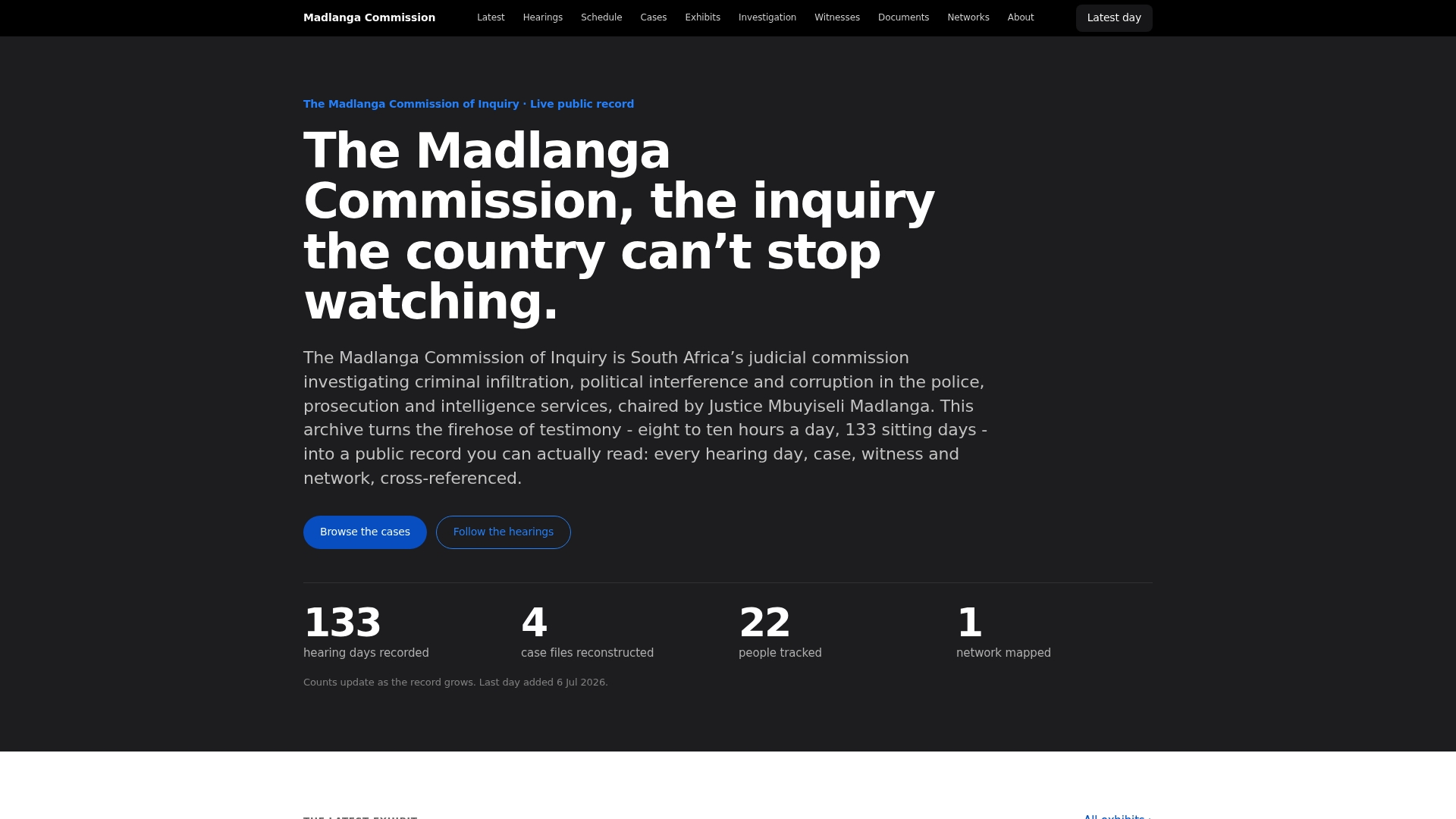
Every case file, hearing transcript, and exhibit in the archive sits behind that same governance model, which is precisely why the record holds up to scrutiny. If you want a concrete reference point for how this looks outside a vendor’s feature list, browse the case files of the Madlanga Commission and see how a live public archive organizes access at scale. It’s a useful benchmark whether you’re auditing your own document system or just want to understand how a public-interest record protects its own integrity.
Sources
- Restrict access to sensitive documents in Amazon Quick knowledge bases (AWS blog)
- Using Bulk Document Actions | Veeva Vault Help
- Modify access and bulk operations | NetDocuments support
- KB Admin Batch update guide (batch access change notes)
FAQ
How do I open multiple documents at once?
Most document management systems let you select several files using checkboxes or a saved view, then open them in a batch viewer or export them together as a single action rather than opening each one individually.
How do I get access to a document?
Access typically comes through group membership set by an administrator; contact whoever manages the archive or system if a document you need isn’t visible, since individual permission requests are usually routed through the group owner.
What are the 7 types of documents?
Definitions vary by field, but in records and archive management, common categories include correspondence, reports, transcripts, exhibits, rulings, statements, and media briefings, similar to the record types found in the Madlanga Commission’s case files.
What is the best way to scan bulk documents?
Batch scanning works best with a dedicated document scanner that supports automatic feed and searchable OCR output, paired with consistent file naming so the resulting files slot directly into your existing folder and metadata structure.
How many documents can a bulk action typically process?
Limits are platform-dependent: some tools cap actions at 100 items, Veeva Vault supports up to 1,000, and some enterprise list views handle up to 10,000 items in a single batch.