Document version history: how to view, restore, and manage it

Document version history is the automatic record of every saved change to a file, tracking who edited it, when, and what changed. You can act on this right now, without reading further.
- Open the file’s version history menu (usually under “File” or “History”).
- Preview an earlier save to confirm it’s the one you need.
- Restore it to make that version current, or copy it to keep both.
- Check the timestamp and author name to confirm accuracy before restoring.
For public records work, groups like Madlanga Commission depend on this same mechanic. An audit trail with timestamped author attribution turns a simple file history into evidence people can trust.
Key Takeaways
Document version history works because it ties every edit to a named author and a timestamp, turning a simple backup into a defensible, restorable record.
| Point | Details |
|---|---|
| Restore without losing history | Choose restore or copy so later versions stay intact rather than getting overwritten. |
| Enable versioning on shared libraries | Confirm SharePoint or Drive folders have versioning turned on and retention limits set. |
| Add change notes to major saves | A one-line rationale for each update helps future reviewers understand intent, not just timing. |
| Use manual naming only for releases | Reserve filename conventions like v1.0_APPROVED for formal or offline files, not daily drafts. |
| Lock files during active review | Check-in/check-out prevents two people from creating conflicting “final” versions. |
Table of Contents
- What is document version history and why does it matter?
- How does automatic versioning actually work?
- How do you view and restore version history in Microsoft 365?
- How do you view and restore version history in Google Docs?
- How do you view and restore version history in Dropbox?
- How do you enable and configure versioning for team libraries?
- When does manual version control still make sense?
- What best practices keep teams from losing track of edits?
- Why is version history sometimes missing or incomplete?
- Why does version history matter for public records and accountability?
- How do you handle version history for legacy or non-standard file formats?
- How do you resolve conflicts and stop version drift before it starts?
- Sources
- FAQ
What is document version history and why does it matter?
Version history is a saved record of every edit to a file, capturing the author, the timestamp, and often a change description. It exists so nobody has to guess what changed or who changed it.
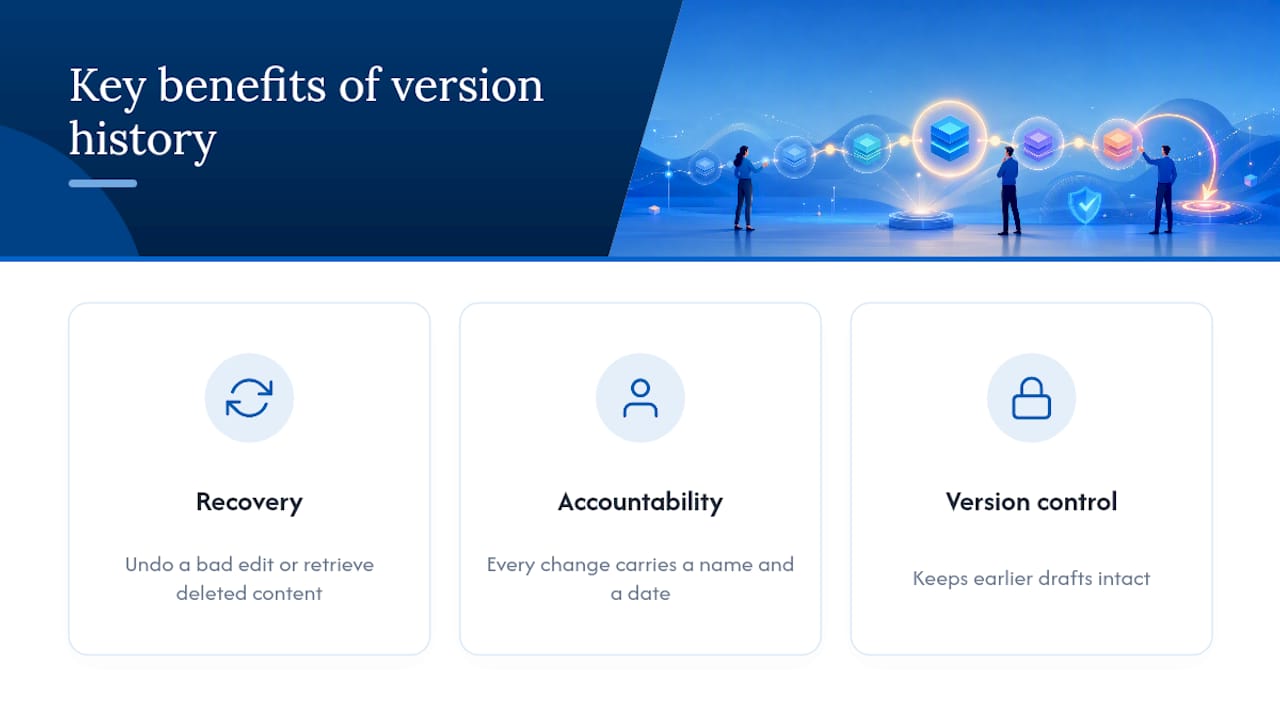
The practical payoff shows up in three places. Recovery lets you undo a bad edit or retrieve deleted content without asking a colleague to email an old copy. Accountability means every change carries a name and a date, which matters the moment two people disagree about who approved what. And for teams juggling shared files, version control keeps earlier drafts intact while preventing conflicting edits from overwriting each other.
Version history mostly replaces manual file naming for day-to-day drafts. Formal releases, contracts, or anything leaving your organization still benefit from a named final version.
Pro Tip: Keep automatic version history running for internal drafts, but save a clearly labeled final copy the moment a document is approved or sent externally.
How does automatic versioning actually work?
Most cloud-connected apps create a new version at specific triggers, not at every keystroke. Autosave checkpoints, manual saves, and closing the file after edits typically each generate an entry.
Systems distinguish major versions (visible, often approval-worthy) from minor versions (small edits, autosaves) in some platforms, though not all label them this explicitly. Authorship metadata, meaning the username and timestamp attached to each entry, is what makes the record usable rather than just a pile of dated files.
A typical cycle looks like this:
- Someone opens a shared document and edits a paragraph.
- The app autosaves, creating a new version entry with their name and the time.
- A colleague opens the same file later and sees the prior version listed, with the option to preview or restore it.
- Autosave creates most versions automatically; some apps also let you save a version manually with a note.
- Not every platform shows major/minor labels, so check your specific app’s history panel before assuming a version was “official.”
How do you view and restore version history in Microsoft 365?
Word, Excel, and PowerPoint files stored in OneDrive or SharePoint carry built-in version tracking, and the menu path is nearly identical across all three apps.
- Open the file and go to File > Info > Version History, or click the file name at the top of the window and select “Version History” from the dropdown.
- Browse the list of saved versions, each showing a timestamp and the editor’s name.
- Click any entry to preview it in a side panel without altering the current document.
- Choose Restore to make that version the active file, or Open Version and save it separately if you want to keep both.
- Restoring overwrites the current version but does not delete history, so you can always step forward again if you change your mind.
- If “Version History” doesn’t appear, the file may be stored locally rather than in OneDrive or SharePoint.
For team libraries, an admin controls whether versioning is on, how many versions get kept, and whether major/minor tracking applies. Microsoft’s own documentation on how to view the version history of an item or file in a list or library covers the exact settings, including View, Restore, and Delete actions available per version. A related walkthrough on how to view previous versions of Office files breaks down what each action does in Word, Excel, and PowerPoint specifically.
How do you view and restore version history in Google Docs?
Google Docs tracks every edit automatically, and reaching the full history takes one menu click or a keyboard shortcut.
- Go to File > Version History > See Version History, or press Ctrl+Alt+Shift+H (Cmd+Option+Shift+H on Mac).
- Scroll the timeline on the right to see edits grouped by time and collaborator.
- Click Name this version on any entry to label a milestone, like “Sent to reviewer” or “Board approved.”
- Select Restore this version to make it current, or copy the content manually if you only need part of it.
Pro Tip: Named versions are the easiest way to mark approvals in Google Docs, especially when collaborators are editing offline and syncing changes later in the day.
How do you view and restore version history in Dropbox?
Dropbox tracks file changes separately from Google Docs or Microsoft 365, with its own retention rules by plan tier.
- In the Dropbox web interface, right click the file and select Version History.
- Browse the list of saved versions with their timestamps, then click Restore on the one you want, or Download to save it as a separate copy.
Free and basic paid plans typically retain versions for a limited window, often 30 days, while higher tiers extend retention considerably. If the version you need has aged out of that window, check whether an admin enabled extended version history for your account before assuming it’s gone.
How do you enable and configure versioning for team libraries?
Admins managing a SharePoint library or shared cloud folder need a short checklist before trusting the history to hold up.
- Confirm versioning is turned on for the library (it’s on by default in SharePoint, but not guaranteed elsewhere).
- Set the maximum number of major versions kept, and decide whether minor versions apply.
- Configure retention and auto-delete limits so old versions don’t pile up indefinitely.
- Assign who can restore versions versus who can only view them, and log restore events for later review.
- Locking a file during formal review prevents two people from creating conflicting “final” versions at once.
- More retained versions means more storage used, so balance audit needs against storage cost when setting limits.
When does manual version control still make sense?
Manual naming earns its keep in a few specific situations: offline files with no cloud sync, formal releases sent externally, and legal attachments where the exact file that left the building matters more than the editing history behind it.
A simple, reusable template works better than improvising each time:
ProjectName_v1.0_2026-06-01_DRAFTProjectName_v2.0_2026-06-15_APPROVEDProjectName_FINAL_2026-06-20_SIGNED
Once a manually versioned file is approved, store it in the canonical library so it rejoins the automatic system going forward.
What best practices keep teams from losing track of edits?
A few habits separate teams with a clean audit trail from teams arguing over which file is “the real one.”
- Maintain one single source of truth per document, rather than parallel copies in email and chat.
- Use check-in/check-out or file locking during active edits to stop simultaneous overwrites.
- Require named versions at approval milestones, not just for casual saves.
- Set role-based permissions so only designated reviewers can restore or delete versions.
Retention policy depends on context. Ordinary business files might only need a few months of history, while regulated or evidentiary records often call for retention measured in years, with end-to-end encryption protecting sensitive archives.
Pro Tip: Require a one-line change note on every major save. It costs seconds now and saves hours when someone asks “why did this change?” six months later.
Automating this instead of relying on memory pays off directly: automated version control reduces the time teams spend hunting for the latest file by enforcing a single source of truth and locking out conflicting edits.
Why is version history sometimes missing or incomplete?
A few common causes explain a thin or absent history. Versioning may simply be disabled at the library level, a file might have been downloaded and edited offline before re-uploading, or older versions may have aged past the retention window.
- Check library or folder settings to confirm versioning is switched on.
- Confirm you have permission to view history; some platforms hide it from non-editors.
- Search email attachments or local drives for copies made before the file was moved to the cloud.
- Contact an admin if history appears to have been deleted rather than merely expired.
When restoring, preserve the later timeline by creating a new version from the old one rather than deleting everything that came after it, since a straight overwrite can erase intermediate edits you’ll want later.
Why does version history matter for public records and accountability?
Version history matters most when a document’s history becomes evidence, not just a convenience.
A timestamped author attribution can resolve a dispute that would otherwise come down to one person’s word against another’s. In an investigation, knowing exactly who edited a statement, and precisely when, can settle a question of fact that no amount of testimony alone can.
Madlanga Commission treats this principle as central to its own public record, applying the same methodology, sourcing, and corrections discipline to hearing transcripts and case files that any well-run document system applies to shared drafts. Simply logging a timestamp isn’t enough on its own; documenting the rationale behind each update is what lets a future reviewer reconstruct why a change was made, not just when.
How do you handle version history for legacy or non-standard file formats?
Older formats like .doc, .wpd, or scanned PDFs rarely carry built-in version tracking the way a live Google Doc or a OneDrive-hosted Word file does. Once a file leaves a cloud-native format, automatic history usually stops.
The practical fix is to treat the cloud storage layer as the version tracker, rather than expecting the file format itself to carry that intelligence. Upload legacy files into OneDrive, SharePoint, or Google Drive, and every subsequent edit starts generating a normal version history from that point forward, even if the file itself is a decades-old format. The history before that upload date simply won’t exist unless someone manually preserved prior copies.
For scanned documents or PDFs that get edited outside a cloud suite, adopt a naming convention that mimics version tracking manually: include a date and revision number in the filename, and keep every prior copy in a dedicated “superseded” folder rather than deleting it. This isn’t as clean as automatic history, but it preserves the chain.
Proprietary or industry-specific formats (CAD files, specialized legal software exports) often have their own internal versioning tools separate from your cloud storage. Check whether the originating software has a built-in history feature before assuming your cloud platform is tracking changes to that file type; in many cases it’s only tracking the file as a static blob, not parsing internal revisions the way it would a native Word document.
How do you resolve conflicts and stop version drift before it starts?
Version drift happens when two people edit the same document separately and end up with two “final” versions that disagree, usually because nobody was editing the same live file.
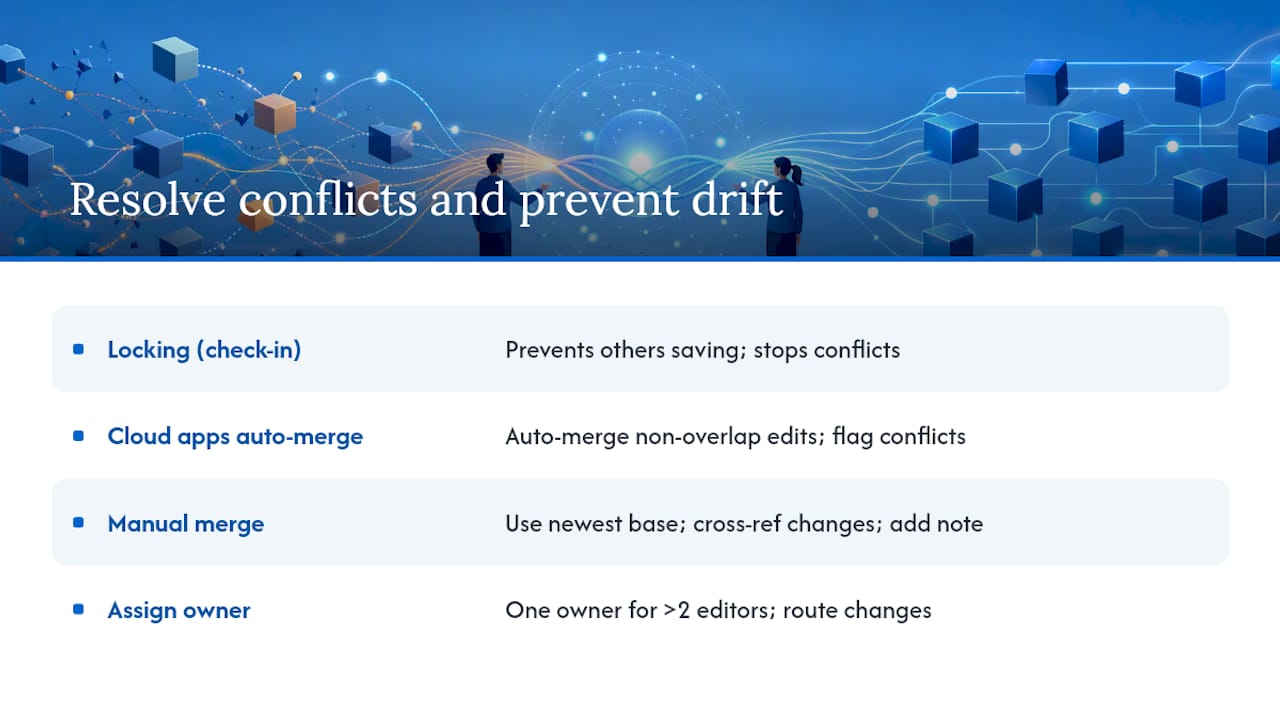
The most direct fix is locking. Check-in/check-out systems, available in SharePoint and most enterprise document management platforms, prevent a second person from saving changes while someone else has a file open for editing. This eliminates the conflict at its source rather than requiring anyone to merge changes after the fact.
When simultaneous edits do happen, most cloud apps flag the conflict rather than silently overwriting one person’s work. Google Docs and Word Online typically merge non-overlapping edits automatically and only flag true conflicts, where two people changed the exact same sentence or cell, for manual review.
When you do have to merge manually, work from the most recent version as your base, and cross-reference the conflicting version’s changes rather than trying to combine three or four drafts at once. Add a change note explaining which edits were kept and which were dropped, so the decision is documented rather than silently lost.
The longer-term prevention is procedural: assign one person as the document owner for any file with more than two active editors, and route all changes through that person during high-stakes review periods. It’s a small governance step, but it’s the difference between a clean audit trail and a folder full of “FINAL_v3_reallyfinal” files.
A practical perspective on treating version history as policy
Version history isn’t just a safety net. Investigations move faster when nobody has to argue about which draft is real. My one recommendation for record-keeping teams: adopt a single rule that every major update requires a one-line change note. It’s a small habit that removes ambiguity later.
Sources
- View the version history of an item or file in a list or library | Microsoft Support
- Document version control software | Capterra South Africa
- Document version control | RWS glossary
- Document version control: a guide for businesses | Proton
FAQ
How do I see a document’s version history?
Open the file in Word, Excel, PowerPoint, or Google Docs and look for “Version History” under the File menu; in Dropbox, right click the file on the web interface and select the same option.
How do I check the version history of a shared file?
Open the file’s version history panel and look for a timestamped list of saves, each labeled with the editor’s name; clicking an entry usually opens a preview without changing the current file.
How can I view the version history of a Word document?
Go to File > Info > Version History in Word, or click the file name at the top of the window and select “Version History” from the dropdown, provided the file is stored in OneDrive or SharePoint.
Can you see version history in Google Docs?
Yes. Go to File > Version History > See Version History, or press Ctrl+Alt+Shift+H, to view a timeline of edits color coded by collaborator.
What happens if version history is missing entirely?
Check whether versioning is enabled in the library settings, confirm you have permission to view history, and search for offline copies made before the file was uploaded to the cloud.